JAlcocerTech E-books
  1. Embracing the Journey of Digital Independence

Before diving into the technicalities of self-hosting, it’s crucial to understand the foundational values and principles that make this journey not just a technical endeavor, but a pursuit of digital independence and control

At its core, self-hosting involves setting up and maintaining your server infrastructure to host applications, websites, and services. It’s about taking control of your digital footprint, rather than relying on third-party providers.

  1. The Values of Self-Hosting Privacy and Control: In an era where data is the new gold, self-hosting provides an oasis of privacy. It allows you to control who has access to your information, mitigating the risks of data mining and surveillance that come with mainstream cloud services. Customization and Flexibility: Self-hosting empowers you to tailor your digital environment to your specific needs. You’re not bound by the limitations or choices of service providers; you have the freedom to customize applications, workflows, and data management to suit your preferences. Independence and Reliability: Relying on external services means being at the mercy of their uptime and policies. Self- hosting brings the assurance that you’re not affected by external outages, policy changes, or sudden discontinuation of services. Learning and Growth: Self-hosting is a journey of continuous learning. It challenges you to acquire new skills, from networking to server management, cultivating a deeper understanding of the digital world.3. Principles of Successful Self-Hosting Simplicity: Start simple. Don’t overwhelm yourself by trying to host everything at once. Begin with one or two services and gradually expand your setup. Security Consciousness: Make security a priority from day one. This includes regular updates, using strong passwords, implementing firewalls, and considering encryption. Documentation and Organization: Keep detailed documentation of your setup and configurations. This practice is invaluable for troubleshooting and scaling your setup in the future. Community Engagement: Leverage the knowledge and experience of the self-hosting community. Forums, blogs, and social media groups can be great resources for support and advice.

  2. Self-Hosting: A Manifesto of Digital Freedom Digital Sovereignty: Self-hosting is fundamentally about reclaiming control over your digital life. It’s a stand against the monopolization of the internet by large corporations and a step towards personal digital sovereignty. Freedom from Surveillance: By self-hosting, you detach from pervasive surveillance practices. It’s about taking charge of your data and deciding who gets to see, use, and benefit from it. Independent Decision-Making: Self-hosting empowers you to make independent choices about your digital tools and services, free from the constraints and terms imposed by third-party providers.

  3. The Symbiotic Relationship with Open Source Software Shared Ideals: Both self-hosting and open source software are rooted in ideals of freedom, transparency, and community-driven development. They share a common ethos: empowering users to take control of their technological environment.Transparency and Trust: Open source software offers transparency, allowing you to inspect, modify, and understand the code you’re using. This openness fosters trust, a critical element when you’re responsible for your data and services. Community and Collaboration: Open source projects thrive on community involvement. This collaborative spirit is intrinsic to self-hosting, where sharing knowledge and solutions is paramount to individual and collective success. Cost-Effectiveness and Accessibility: Open source software often presents a more affordable alternative to proprietary solutions. This accessibility aligns with the self-hosting principle of creating a more inclusive digital space, free from financial barriers. Self-hosting is more than just a technical project; it’s a commitment to digital independence, privacy, and control. By understanding and embracing the values and principles of self-hosting, you’re not just setting up servers; you’re embarking on a rewarding journey towards mastering your digital domain. Welcome to the world of self-hosting, where technology meets values, and where your choices define your digital world. Chapter 1: Introduction to Self-Hosting Self-Hosting: A Path to Digital IndependenceIn an era where reliance on third-party services is the norm, the concept of self-hosting offers a breath of digital autonomy. But what exactly is self-hosting? At its core, self-hosting involves setting up and maintaining your server, on which you can manage various services, including websites, email servers, cloud storage, and more. This means you’re not just a user; you’re the administrator, with complete control over your digital presence. Why Choose Self-Hosting? Self-hosting comes with a suite of benefits. The most prominent is the control it offers over your data. In an age where data privacy and security are paramount, self-hosting provides a sanctuary. You know where your data is stored, who has access to it, and how it’s managed. Additionally, self-hosting can be cost-effective in the long run, especially if you’re using it for multiple services. It also offers a high level of customization; you can tweak your services to your exact specifications and needs. Self-hosting is like having a secret hideout, with a ton of perks. First up, it gives you total control over your precious data, which is a big deal in our privacy-obsessed world. You’ll know exactly where your data is, who’s peeking at it, and how it’s being used. Plus, it can be super cost-effective in the long run, especially if you’re hosting multiple services. And the best part? It’s like having a genie to grant all your customization wishes! You can fine-tune everything to fit your exact needs and whims. However, it’s not without challenges. Self-hosting requires a certain level of technical know-how. Setting up and maintaining servers, handling security measures, and troubleshooting issues are part of the package. The initial setup can also involve some investment, especially if you’re purchasing hardware. What Can You Self-Host? The possibilities are vast. Individuals often start with web hosting, managing their personal or business website on their server. But it doesn’t stop there. You can host your email server, ensuring your communications are not sitting on a third- party server. Cloud storage solutions like Nextcloud allow you to create your cloud, storing and sharing files without relying on services like Google Drive or Dropbox. Moreover, self-hosting extends to media servers, gaming servers, home automation systems, and even VPN services. Essentially, if there’s a service you use online, there’s likely a way to self-host it. Embarking on Your Self-Hosting Journey Before diving into the technicalities, it’s crucial to understand the responsibilities that come with self-hosting. You’ll be in charge of not just setting up but also securing and maintaining your server. This means regular updates, backups, and monitoring its performance. While this might seem daunting, the learning curve is a rewarding process. As you embark on this journey, you’ll gain invaluable skills, from network management to cybersecurity.As we progress through this guide, we’ll break down these concepts and tasks into digestible pieces, ensuring you have a strong foundation to start your self-hosting adventure. Remember, self-hosting isn’t just about the services you run; it’s about embracing a philosophy of independence and control over your digital life. Whether you’re a tech enthusiast, privacy advocate, or simply curious, self-hosting can be an empowering and enlightening experience. Chapter 2: Understanding the Basics Laying the Foundation for Self-Hosting Embarking on the self-hosting journey requires a solid understanding of its fundamental components. This chapter aims to demystify the basics, including domain names, servers, networking, and the role of security and privacy. Domain Names: Your Digital Identity A domain name is your unique identifier on the internet, akin to a physical address in the digital realm. It’s what people type in their browser to visit your website or send you an email. Choosing the right domain name is crucial; it reflects your identity or brand and should be memorable and relevant. Acquiring a domain name involves registering it through a domain registrar, a company accredited to sell domain names. You’ll find a plethora of options, with varying prices and features. Once you’ve chosen a registrar, you can search for your desired domain name. If it’s available, you can proceed to register it, usually on an annual basis. Some registrars also offer additional services like privacy protection, which can help mask your personal information from public domain records. Servers and Hosting: The Engines of Self-Hosting At its most basic, a server is a computer that provides data or services to other computers over a network. In the context of self-hosting, it’s the machine where your website, email, or other services will live. Servers can be physical machines you own, or they can be virtual servers hosted in the cloud. When choosing a server, consider factors like processing power, memory, storage capacity, and network connectivity.For beginners, a simple setup like a Raspberry Pi or an old laptop/PC might suffice. But as your needs grow, you might look into more robust options. Networking: Connecting to the World Understanding basic networking concepts is crucial in self-hosting. Your server needs to communicate with the outside world, and that’s where networking comes in. Key components include:

  • IP Addresses: These are unique identifiers for devices on a network. Your server will have an IP address, which is how other devices find and communicate with it.
  • There is one Public IP and one Private IP.
  • Routers and Switches: These devices manage traffic on your network. Routers, in particular, connect your network to the internet.
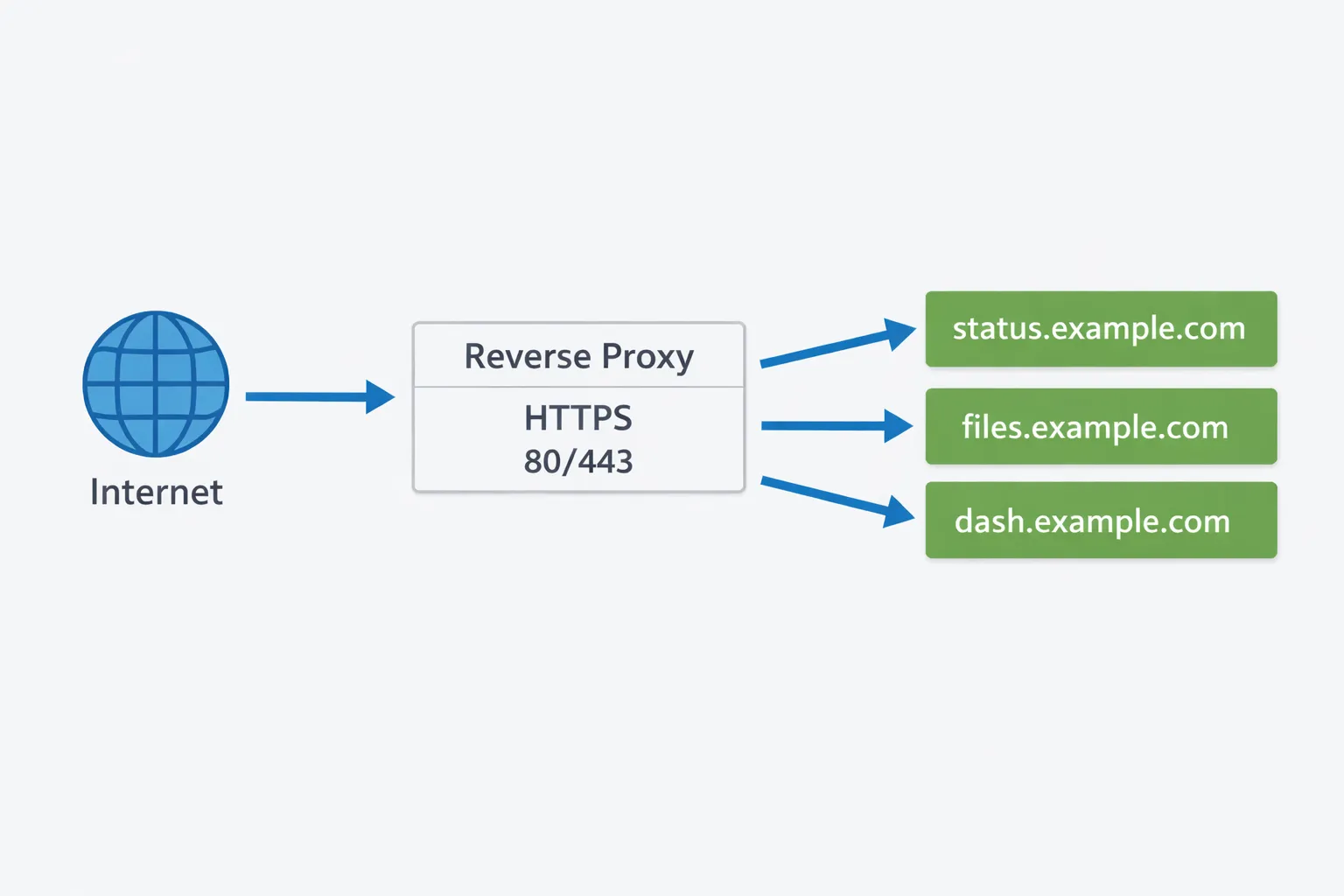
  • Ports: Think of these as doors through which different types of traffic enter and exit your server. For example, web traffic usually comes through port 80 or 443. Understanding these concepts will help you configure your server and troubleshoot connectivity issues. Security and Privacy: The Cornerstones Security and privacy are not just features; they are the cornerstones of self-hosting. Keeping your server secure involves multiple layers:
  • Updates and Patches: Regularly updating your server’s operating system and software is crucial. These updates often contain security patches that protect against vulnerabilities.
  • Firewalls: These act as a barrier between your server and potential threats, controlling incoming and outgoing network traffic based on predetermined security rules.
  • Encryption: Using encryption, particularly for data transmission, ensures that even if data is intercepted, it remains unreadable without the proper decryption key. Privacy, on the other hand, is about controlling who has access to your data. Self-hosting inherently enhances privacy because you’re not entrusting your data to a third party. However, it’s your responsibility to implement measures like access controls and data encryption to maintain that privacy. Chapter 3: Setting Up Your ServerThe Heart of Self-Hosting: Your Server With a clear understanding of the basics, it’s time to delve into the heart of self-hosting: setting up your server. This chapter will guide you through installing an operating system, configuring basic settings, and ensuring your server’s security. Choosing and Installing an Operating System The first step is to choose and install an operating system (OS) for your server. Linux is a popular choice for self-hosting due to its stability, security, and open-source nature. Distributions like Ubuntu Server, CentOS, or Debian are well-suited for server use. However, the choice of OS largely depends on your comfort level and the specific requirements of the services you plan to host. Once you’ve chosen an OS, the installation process typically involves:
  1. Downloading the OS image from the official website.
  2. Creating a bootable USB drive with the OS image.
  3. Booting your server from the USB drive and following the installation prompts.
  4. Setting up user accounts and basic configurations during the installation. Basic Configuration and Remote Access After installation, it’s time to configure your server. This involves setting up network configurations, time zones, and installing essential packages. You’ll also want to enable remote access, as it allows you to manage your server from another computer on the network. Secure Shell (SSH) is a common method for remote access, offering a secure, encrypted connection to your server’s command line. Setting up SSH typically involves:
  • Installing the SSH server package (if not included by default).
  • Configuring the SSH server settings (usually found in /etc/ssh/sshd_config).
  • Starting and enabling the SSH service.
  • Securing SSH access, possibly by disabling root login and using SSH keys instead of passwords.Security Essentials: Firewalls and Updates Security is paramount in self-hosting, and a few basic steps can significantly enhance your server’s security posture:
  • Firewalls: A firewall controls incoming and outgoing network traffic based on predetermined security rules. Most Linux distributions come with ufw (Uncomplicated Firewall) or iptables. Configuring a firewall involves setting up rules to allow legitimate traffic and block potentially harmful connections. At a minimum, ensure that only ports required for your services are open.
  • Regular Updates: Keeping your server updated is crucial for security. This involves regularly checking for and installing updates for your OS and installed packages. On most Linux systems, this can be done using package managers like apt (for Debian-based systems) or yum (for RedHat-based systems).
  • Additional Security Measures: Consider additional security measures like fail2ban, which helps prevent brute-force attacks by banning IP addresses that repeatedly fail to authenticate correctly. Conclusion: A Server Ready for Action Setting up your server is a blend of technical know-how and diligent security practices. By carefully selecting an OS, configuring basic settings, enabling remote access, and prioritizing security with firewalls and regular updates, you’ve laid a robust foundation. With your server now operational and secure, you’re ready to embark on the next stages of self-hosting, where you’ll start running the actual services that make self-hosting so empowering and rewarding. Chapter 5: Essential Software and Tools Equipping Your Server for Success With your server up and running, the next step is to equip it with the necessary software and tools. This chapter provides an overview of essential software for self-hosting, compares open-source and proprietary options, and guides you through installing and configuring these basic tools.
  1. Web Server Software A web server software is crucial if you plan to host websites or web applications. It handles incoming web requests and serves content to users. Popular choices include:- Apache: Known for its versatility and modularity. It’s widely used and well-supported.
  • Nginx: Renowned for its performance and low resource consumption. It’s often used for high-traffic websites.
  • Lighttpd: A lightweight option, suitable for servers with limited resources.
  1. Database Management Most web applications require a database to store data. Common database management systems (DBMS) include:
  • MySQL/MariaDB: Widely used, open-source relational database systems.
  • PostgreSQL: Another open-source relational DBMS, known for its advanced features and compliance with SQL standards.
  • SQLite: Ideal for smaller projects, as it’s lightweight and requires minimal setup.
  1. Programming Languages and Frameworks Depending on what you plan to host, you might need to install certain programming languages and frameworks. Common choices include PHP (often used with WordPress), Python (with frameworks like Django or Flask), and Node.js for JavaScript server-side applications.
  2. File Transfer and Management Tools like SFTP (Secure File Transfer Protocol) and FTP (File Transfer Protocol) are essential for transferring files securely to and from your server. For file management, utilities like rsync can be invaluable for syncing and backing up files. Open-Source vs. Proprietary Options When selecting software, you’ll often encounter both open-source and proprietary options. Open-source software, like Apache and MySQL, is free to use, modify, and distribute. It’s generally preferred in the self- hosting community due to its flexibility, transparency, and active communities. Proprietary software, on the other hand, is owned by companies and often requires purchasing a license. While it can offer specialized support and features, it typically lacks the transparency and control offered by open-source alternatives. Installing and Configuring Basic ToolsInstallation processes vary based on your operating system and the software in question. Most Linux distributions come with package managers that simplify the installation. For example, to install Apache on Ubuntu, you would typically use:
sudo apt update
sudo apt install apache2

Post-installation, configuration is crucial. This involves editing configuration files to tailor the software to your needs. For web servers, this might include setting up virtual hosts for multiple websites or configuring SSL for secure connections. Always consult the official documentation for guidance on installation and configuration. Remember, properly configuring your software not only optimizes performance but is also essential for security. Conclusion: A Well-Equipped Server Equipping your server with the right software and tools is a critical step in self-hosting. By carefully selecting and configuring each component, you ensure your server is not only capable of hosting a variety of services but is also secure and efficient. With this solid foundation of essential software, you’re now poised to venture into more specific applications of self-hosting, such as web hosting, email services, and cloud storage. Chapter 5: Hosting a Website Launching Your Digital Presence Hosting a website is one of the most common and rewarding self-hosting endeavors. This chapter covers the basics of web hosting, guides you through installing a content management system like WordPress, and provides tips on customizing and securing your site. 1. Basics of Web Hosting Web hosting involves storing your website’s files on a server so that they’re accessible to users via the internet. The key components include:- Web Server Software: As discussed in the previous chapter, software like Apache or Nginx is essential. It serves your website’s content to visitors.

  • Domain Name: This is the address people will use to access your website. Ensure your domain is properly configured to point to your server’s IP address.
  • DNS Configuration: DNS (Domain Name System) settings must be configured to connect your domain to your server. This typically involves setting A records to point to your server’s IP address.
  1. Installing a Content Management System (CMS) A CMS like WordPress /Ghost simplifies creating and managing a website.
  2. Customizing Your Website Customization is where you can get creative. WordPress offers themes and plugins for virtually any functionality or design:
  • Themes: Choose a theme that matches the aesthetic you desire for your website. Themes can be customized further to fit your specific needs.
  • Plugins: Plugins extend the functionality of your website. Whether you need contact forms, SEO tools, or e- commerce capabilities, there’s likely a plugin for it. Remember, while it’s tempting to install numerous plugins, each adds potential security vulnerabilities and might slow down your site. Only install well-reviewed plugins that are regularly updated.
  1. Securing Your Website Security should never be an afterthought:
  • Regular Updates: Keep WordPress, themes, and plugins updated to protect against vulnerabilities.
  • Strong Passwords: Use strong, unique passwords for your admin accounts.
  • SSL/TLS Certificate: Implement HTTPS by installing an SSL/TLS certificate. This encrypts data between your website and its visitors, protecting sensitive information.
  • Security Plugins: Consider security plugins that offer features like firewalls, malware scanning, and brute force attack protection. Conclusion: A Website to Call Your OwnHosting your website offers unparalleled control and customization. By understanding the basics of web hosting, installing a CMS like WordPress, and focusing on customization and security, you’ve unlocked the ability to create a dynamic, secure, and truly personal online presence. As you grow more comfortable with self-hosting, you’ll find that the flexibility and learning opportunities it provides are just as rewarding as the website you’ve built. Chapter 8: Cloud Storage and File Sharing Your Personal Cloud: Secure and Accessible In an age where data is everything, having control over your own cloud storage and file-sharing system is empowering. This chapter guides you through setting up private cloud storage with solutions like Nextcloud or OwnCloud, synchronizing files across devices, and securely sharing files. 1. Setting Up Cloud Storage Nextcloud is popular open-source software that allow you to create your own cloud storage service. Here’s how to get started: Docker.
  1. Synchronizing Files Across Devices One of the main advantages of cloud storage is having your files synchronized across various devices. Nextcloud offesr desktop and mobile apps for this purpose.
  • Installing Sync Clients: Download and install the appropriate sync clients for your devices from the Nextcloud or OwnCloud website.
  • Setting Up Sync: Open the app, connect to your cloud server using your credentials, and select the folders you want to synchronize. The app will keep these folders in sync across your devices, ensuring you have the latest files wherever you are. 3. Sharing Files Securely Secure file sharing is a cornerstone of personal cloud storage. Nextcloud provides robust options:- Share Links: Generate shareable links for files or folders. You can set passwords and expiration dates for these links to enhance security.
  • User and Group Sharing: Share files directly with other users or groups on your cloud server. This is ideal for collaborative work where multiple people need access to the same documents.
  • Public Uploads: Allow others to upload files to your cloud without giving them full access. This can be useful for collecting files from multiple people in a secure manner. Advanced Features and Add-ons Both Nextcloud and OwnCloud support add-ons that extend functionality. You might consider add-ons for:
  • Contacts and Calendar Sync: Keep your contacts and calendar events synchronized across devices.
  • Collaborative Document Editing: Work on documents in real-time with others.
  • Additional Security: Implement features like two-factor authentication for added security. Conclusion: The Power of Personal Cloud Storage By setting up your own cloud storage with Nextcloud, you gain a secure, private, and flexible storage solution. Synchronizing files across devices ensures you’re always connected to your data, and secure file sharing allows for seamless collaboration. With your personal cloud in place, you have a powerful tool that enhances both your productivity and control over your digital life. Chapter 9: Advanced Topics Elevating Your Self-Hosting Game As you grow more comfortable with self-hosting, diving into advanced topics can significantly enhance your setup’s reliability, efficiency, and scalability. This chapter explores automated backups and disaster recovery, monitoring and maintaining server health, and introduces the concepts of containerization and virtualization.
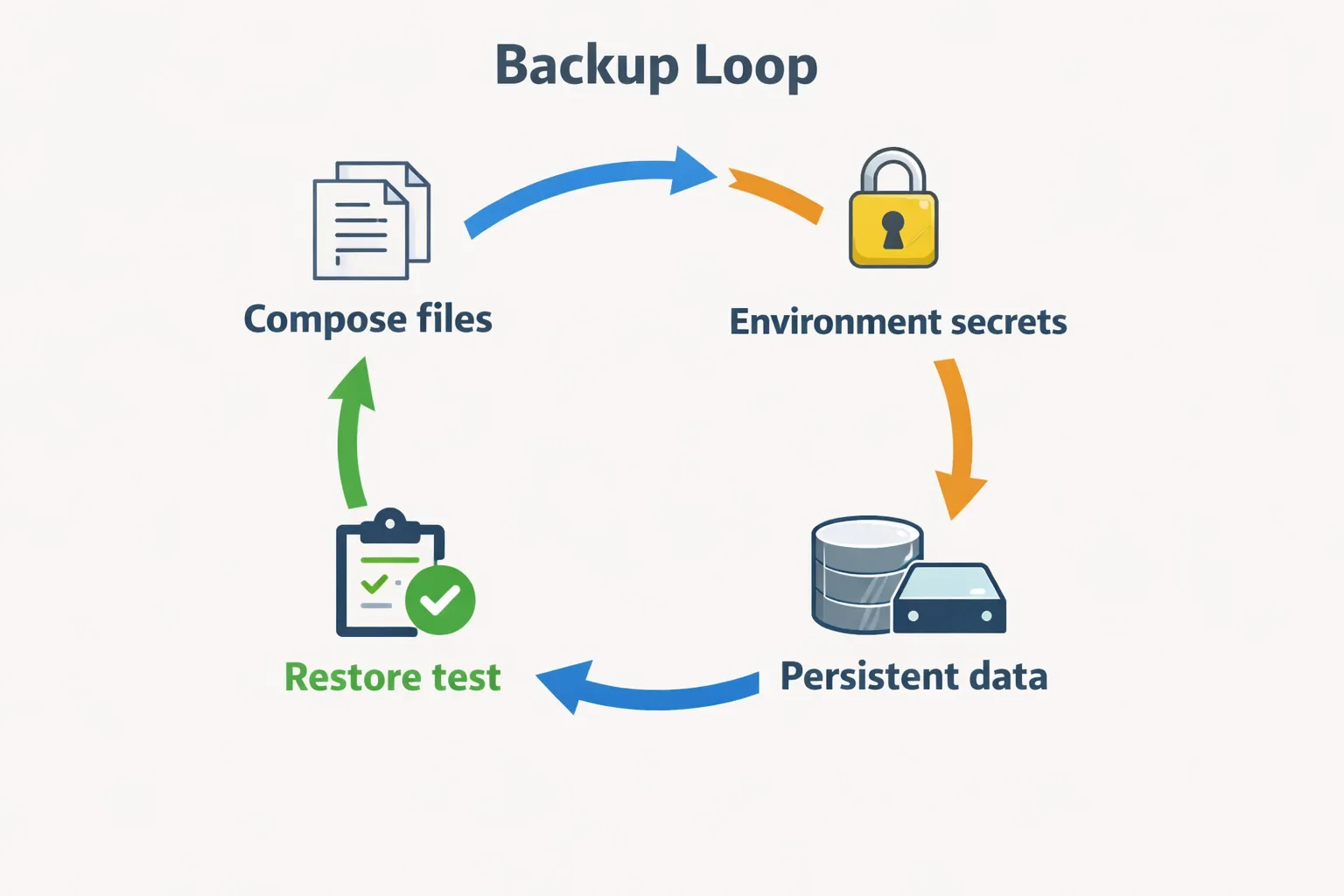
  1. Automated Backups and Disaster Recovery The Importance of Backups: Regular backups are the backbone of any robust hosting environment. They ensure that your data is safe in the event of hardware failure, accidental deletions, or cyber-attacks.- Types of Backups: Understand the different types of backups – full, incremental, and differential – and implement a strategy that balances storage space with recovery speed.
  • Automating Backups: Use tools like rsync, `cron jobs to automate the backup process. Ensure your backups are stored in a separate location from your primary data, ideally off-site or in cloud storage. Disaster Recovery Planning: Having a disaster recovery plan is crucial. This plan should detail steps to restore services and data in the event of a major issue. Regularly test your backups and recovery procedures to ensure they work as expected.
  1. Monitoring and Maintaining Server Health Monitoring Tools: Utilize monitoring tools to keep an eye on server performance and health. Solutions like Nagios, Zabbix, or Prometheus can provide real-time data on server metrics like CPU usage, memory, disk space, and network activity. Alerts and Notifications: Configure alerts to notify you of potential issues before they become critical. This proactive approach can prevent downtime and save you from scrambling to fix problems. Regular Maintenance: Perform regular maintenance tasks, such as updating software, checking logs for errors or suspicious activity, and cleaning up unused files or applications. This keeps your server running smoothly and securely.
  2. Introduction to Containerization and Virtualization Containerization:
  • Basics of Containers: Containers are lightweight, standalone packages that contain everything needed to run a piece of software, including code, runtime, system tools, libraries, and settings. They provide a consistent environment across different systems, making deployment easier and more reliable.
  • Docker: Docker is the most popular containerization platform. It allows you to create, deploy, and run applications in containers. Docker can be especially useful for testing new applications or configurations without affecting your main system.
  • Benefits of Containerization: Containers offer isolation for applications, efficient use of resources, and portability. They’re ideal for microservices architecture and can simplify the deployment and scaling of applications. Virtualization:
  • Understanding Virtual Machines (VMs): Virtual machines are emulations of computer systems that provide the functionality of a physical computer. They allow you to run multiple operating systems on a single physical server, eachisolated from the others.
  • Hypervisors: Hypervisors, like VMware, Hyper-V, or KVM, are software, firmware, or hardware that create and run VMs. They enable you to allocate resources like CPU, memory, and storage to each VM.
  • Use Cases for Virtualization: Virtualization is valuable for running applications that require different operating systems, testing environments, and for optimizing server resources. Conclusion: Mastery Through Advanced Practices Delving into advanced self-hosting topics like automated backups, server health monitoring, and the realms of containerization and virtualization opens up new avenues for reliability, efficiency, and growth. By mastering these areas, you elevate your self-hosting capabilities, ensuring your data is not only secure but that your services are robust and scalable. Embrace these advanced practices, and you’ll find yourself at the forefront of self- hosting expertise. Chapter 11: Self-Hosting with Docker Harnessing Docker for Efficient Self-Hosting As you delve deeper into the world of self-hosting, you’ll soon encounter Docker—a powerful tool that can significantly streamline your self-hosting journey. Docker simplifies the process of deploying, running, and managing applications by using containers. In this chapter, we’ll explore why Docker is a game-changer for self-hosting and how it can make your experience much more manageable.
  1. Why Docker for Self-Hosting? Simplified Deployment: Docker containers package an application with all its dependencies, ensuring consistency across different environments. This means you can deploy applications with ease, without worrying about the underlying system configurations. Isolation and Security: Each container is isolated from others and from the host system, providing an additional layer of security. If one application encounters an issue, it won’t affect others.Efficient Resource Utilization: Containers are lightweight compared to traditional virtual machines, allowing for more efficient use of system resources. This means you can run more applications on the same hardware without performance degradation. Scalability and Flexibility: With Docker, scaling your applications is as simple as spinning up new containers. It allows for quick adjustments based on demand, making it ideal for dynamic hosting environments. Vast Ecosystem and Community: Docker has a vast ecosystem, with a plethora of pre-built images available on Docker Hub. This community-driven repository provides images for almost every popular application, significantly reducing the time and effort required for setup.
  2. Getting Started with Docker for Self-Hosting Installation: Docker is available for various platforms. Installing Docker is straightforward—just download the appropriate version from the Docker website and follow the installation instructions. Understanding Docker Components:
  • Images: These are the templates used to create containers. They include the application and all its dependencies.
  • Containers: These are the instances created from images. They are the running applications.
  • Dockerfile: This is a script containing instructions on how to build a Docker image.
  • Docker Hub: An online repository where you can find and share Docker images. Basic Docker Commands:
  • docker pull: Downloads an image from Docker Hub.
  • docker run: Creates and starts a container from an image.
  • docker ps: Lists running containers.
  • docker stop: Stops a running container.
  1. Deploying Applications with Docker Using Docker Images: Start by finding the Docker image for the application you want to self-host. For example, if you want to host a WordPress site, you can find the official WordPress image on Docker Hub.Running Containers: Once you have the image, you can run it as a container. For instance, to run WordPress, you would use a command like docker run -p 8080:80 wordpress. Persistent Data and Volumes: Since data inside containers is ephemeral, Docker allows you to use volumes to persist data. This is crucial for applications like databases, where you don’t want to lose data when the container restarts. Networking and Exposing Ports: Docker provides networking capabilities that allow containers to communicate with each other and with the outside world. When running a container, you can map its ports to the host’s ports to make it accessible. Conclusion: Docker - A Catalyst for Self-Hosting Docker introduces a level of simplicity, efficiency, and flexibility that is hard to match with traditional hosting methods. By adopting Docker for your self-hosting needs, you leverage a tool that not only makes application deployment a breeze but also offers robust security, resource efficiency, and scalability. Whether you’re a beginner or an experienced self-host, Docker stands as an invaluable asset in your hosting toolkit. Appendices Valuable Resources for Your Self-Hosting Journey These appendices provide additional resources, including a glossary of common terms, a list of recommended open- source software, and guidance for troubleshooting common issues.

Appendix A: Glossary of Terms

  1. CMS (Content Management System): Software that helps users create, manage, and modify content on a website without the need for specialized technical knowledge.
  2. DNS (Domain Name System): A system that translates human-readable domain names (e.g., www.example.com) into numerical IP addresses that computers use to communicate with each other.
  3. Hypervisor: Software, firmware, or hardware that creates and runs virtual machines (VMs).
  4. IP Address: A unique string of characters that identifies each computer using the Internet Protocol to communicate over a network.
  5. SSL/TLS (Secure Sockets Layer/Transport Layer Security): Protocols for encrypting internet traffic and verifying server identity.6. VM (Virtual Machine): An emulation of a computer system that provides the functionality of a physical computer.
  6. Web Server: A server that stores, processes, and delivers web pages to users. Appendix B: List of Recommended Open-Source Software
  7. Nextcloud: A suite of client-server software for creating and using file hosting services.
  8. Apache: A widely-used web server software.
  9. Nginx: Another popular web server software, known for its performance and scalability.
  10. WordPress: A popular content management system for building websites.
  11. MySQL: An open-source relational database management system.
  12. PHP: A general-purpose scripting language especially suited to web development.
  13. Docker: A platform for developing, shipping, and running applications in containers.
  14. Prometheus: An open-source monitoring and alerting toolkit.
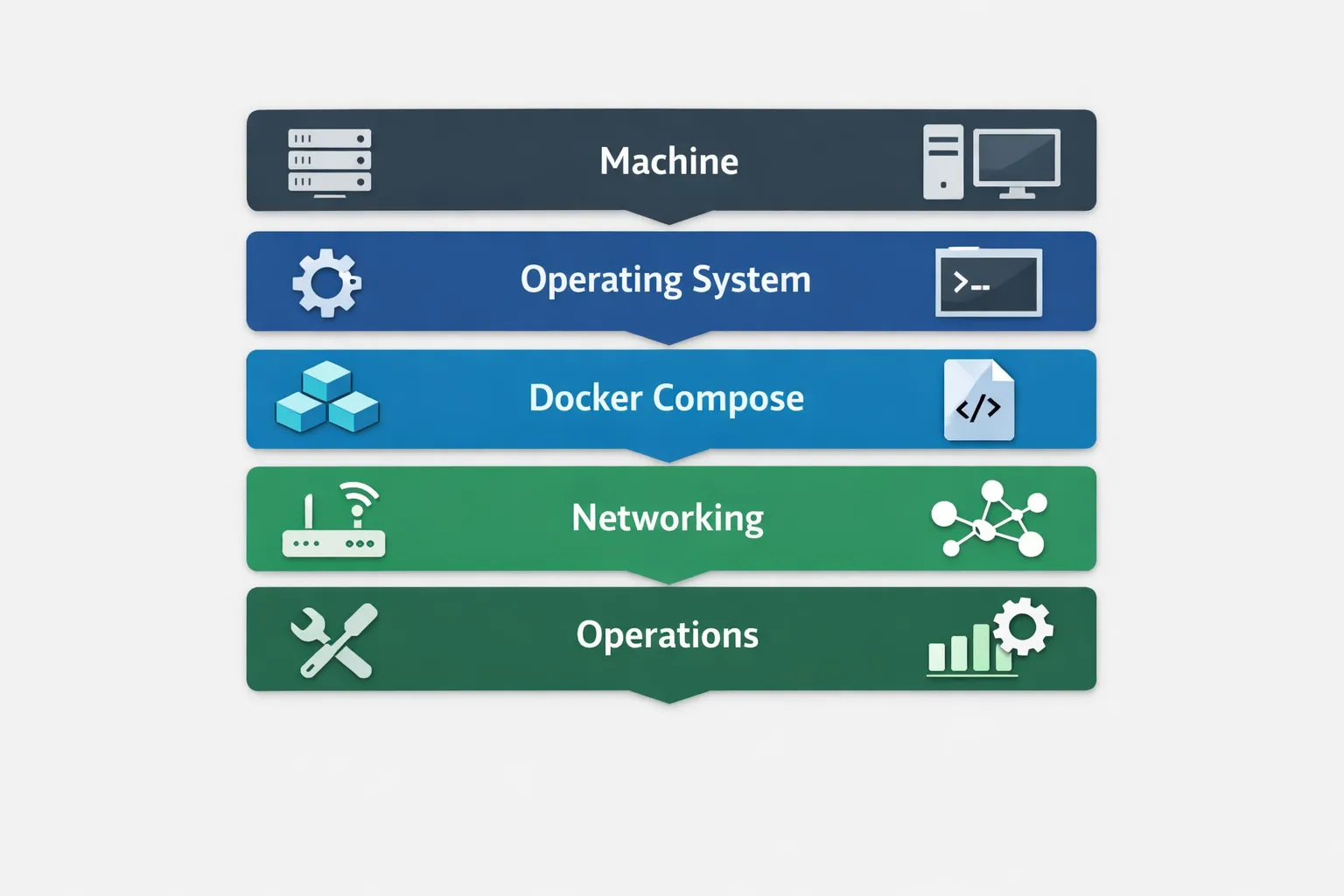
  15. Nagios: A powerful monitoring system that enables organizations to identify and resolve IT infrastructure problems. Appendix C: This appendix serves as a guide for self-hosting popular services — Nextcloud, Matrix, and qBittorrent — using Docker Compose. Docker Compose is a tool for defining and running multi-container Docker applications. It simplifies the deployment process by allowing you to define your stack and its configuration in a single file. This approach can greatly streamline the deployment and management of many services. Nextcloud with Docker Compose Nextcloud: A self-hosted productivity platform that keeps you in control of your data. It offers file sharing, collaboration tools, and various integrations. Setup Considerations: Volumes: Ensure persistent storage for your data and database.Database: Nextcloud typically runs with a database like MySQL or PostgreSQL. Networking: Expose the necessary ports and configure domain settings if applicable. Environment Variables: Set environment variables for database connections and Nextcloud configurations. version: ‘2’ volumes: nextcloud: db: services: db: image: linuxserver/mariadb restart: always container_name: nextclouddb volumes:
  • /home/Docker/nextcloud/db:/var/lib/mysql environment:
  • MYSQL_INITDB_SKIP_TZINFO=1
  • MYSQL_ROOT_PASSWORD=rootpass
  • MYSQL_PASSWORD=ncpass
  • MYSQL_DATABASE=nextcloud
  • MYSQL_USER=nextcloud

networks: [“nginx_nginx_network”] #optional app: image: nextcloud #latest container_name: nextcloud restart: always ports:

networks: [“nginx_nginx_network”] #optional

networks: #optional

nginx_nginx_network: #optional

external: true #optional Matrix with Docker Compose Matrix: An open standard for secure, decentralized, real-time communication offering messaging, VoIP, and video calling. Setup Considerations: Synapse: Matrix’s reference home server implementation, often used in Docker setups. Volumes: Persistent storage for chat history and media. Database: A PostgreSQL container for storing data. Networking: Expose and map ports for communication. Configuration: Set up environment variables and configurations for security and integrations. version: “3.3” services: synapse: image: “matrixdotorg/synapse:latest” container_name: “synapse” volumes:

  • ”./data:/data” #or specifically /home/Docker/Matrix_Synapse ports:- 9999:8008 environment: VIRTUAL_HOST: “matrix.yourdomain.com” VIRTUAL_PORT: 8008 LETSENCRYPT_HOST: “matrix.yourdomain.com” SYNAPSE_SERVER_NAME: “matrix.yourdomain.com” SYNAPSE_REPORT_STATS: “yes” networks: [“nginx_default”] networks: nginx_default: external: true qBittorrent with Docker Compose qBittorrent: A free and open-source torrent client that offers a balance of features, speed, and simplicity. Setup Considerations: Volumes: Allocate storage for downloads and configuration files. Networking: Properly map and expose the web UI and connection ports. Environment Variables: Set variables for configurations and authentication if necessary. Security: Consider using VPN services and appropriate network configurations for privacy.

version: “2.1” services: qbittorrent: image: ghcr.io/linuxserver/qbittorrent container_name: qbittorrent environment:

  • PUID=1000
  • PGID=1000- TZ=Europe/Madrid
  • WEBUI_PORT=6011 volumes:
  • /home/Docker/qbittorrent/config:/config
  • /home/Downloads:/downloads ports:
  • 6081:6881
  • 6081:6881/udp
  • 6011:6011 restart: unless-stopped General Tips for Docker Compose Setups Organize Your Files: Keep your Docker Compose files organized and well-documented for each service. Security: Pay attention to security configurations, especially when exposing ports and services to the internet. Backups: Regularly back up your configuration files and persistent volumes. Updates: Keep track of updates for your Docker images and apply them as needed. Monitoring: Consider implementing monitoring tools to keep an eye on the health and performance of your containers. Appendix D: Troubleshooting Common Issues
  1. Website Not Accessible:
  • Check DNS settings and ensure the domain points to the correct IP address.
  • Verify that your web server software (Apache, Nginx) is running.
  • Confirm that the firewall settings are not blocking access.
  • Check Router’s Port Forwarding
  1. Database Connection Errors:
  • Ensure the database service (like MySQL) is running.
  • Check database connection settings in your application’s configuration.
  • Verify that the database user has the correct privileges.
  1. Slow Website Performance:- Optimize images and static content.
  • Consider caching solutions.
  • Check server resource usage and upgrade resources if necessary.
  1. SSL/TLS Certificate Errors:
  • Confirm that the SSL/TLS certificate is correctly installed.
  • Ensure the certificate has not expired.
  • Check for correct server configuration and port settings.